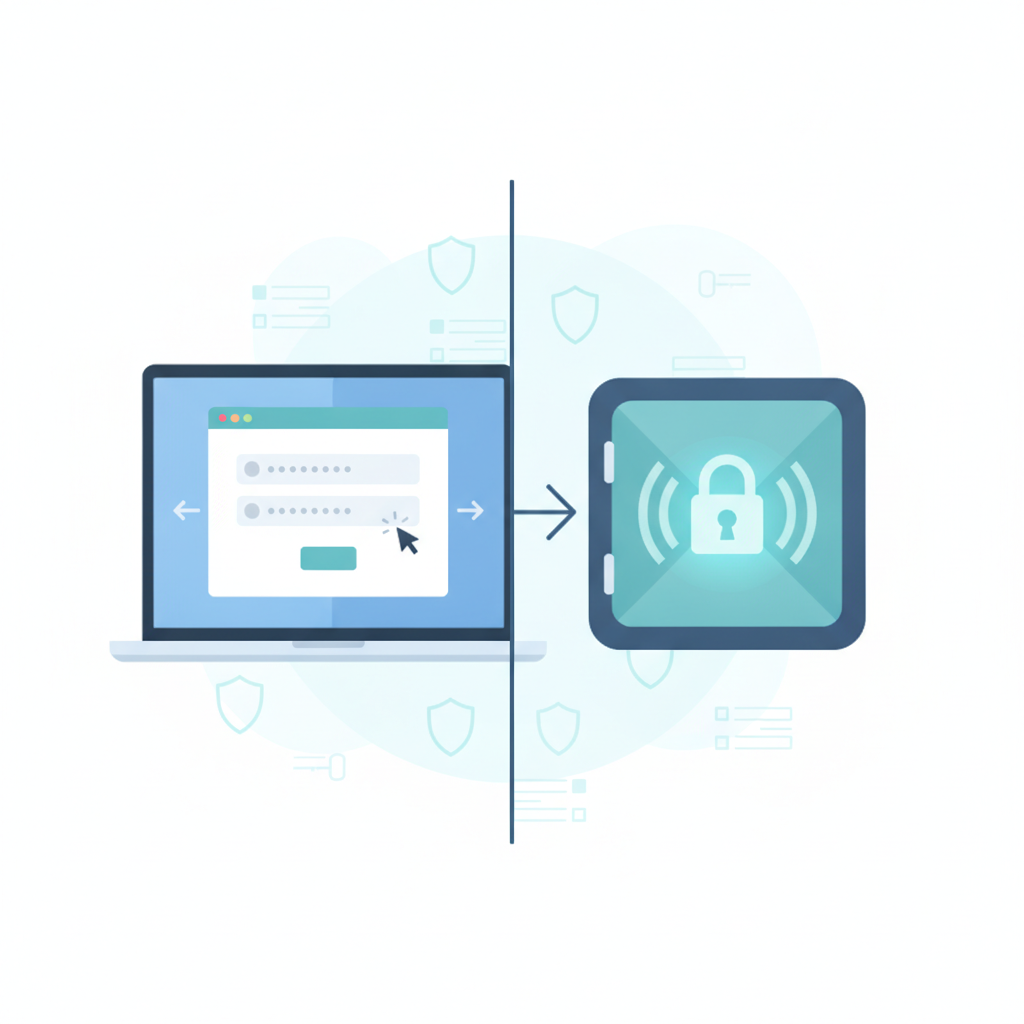
If you’ve ever let your browser remember a password so you don’t have to type it again, you’ve used auto-fill. If you’ve ever installed an app like 1Password, Bitwarden, or Dashlane to store your logins, you’ve used a password manager. On the surface, these two tools seem to do the same job: they save your credentials and fill them in when you need them. But under the hood, they’re built for very different purposes, with very different security guarantees.
Understanding the difference matters more than ever. Data breaches are routine, phishing attacks are increasingly sophisticated, and the average person now juggles dozens of online accounts. Choosing the wrong tool — or relying on the wrong one exclusively — can leave your digital life more exposed than you realize.
What Is Browser Auto-Fill, Really?
Browser auto-fill is a convenience feature built directly into Chrome, Safari, Firefox, Edge, and other browsers. It captures form data — names, addresses, credit card numbers, and login credentials — and automatically populates those fields the next time you visit a site. It’s designed primarily for speed and ease of use, not for security.
Auto-fill data is typically stored locally on your device, sometimes synced to your account (like a Google or Apple ID) for use across devices. While modern browsers do apply some encryption, the protection is generally weaker than what a dedicated password manager offers, and the feature was never designed with security as its core mission. We break this down in detail in our guide on whether browser auto-fill is actually safe, including the hidden risks most users never think about.
What Is a Password Manager?
A password manager is a purpose-built security tool. Its entire function revolves around generating, storing, and protecting your credentials using strong, standardized encryption — typically AES-256. Everything you save is locked inside an encrypted vault that only you can unlock, usually with a single master password (and ideally, two-factor authentication).
Beyond storage, password managers offer capabilities that browsers simply don’t:
- Strong password generation: Creates long, random, unique passwords for every account instead of reused or predictable ones.
- Cross-platform syncing: Works consistently across browsers, operating systems, and mobile apps — not just within one ecosystem.
- Breach monitoring: Alerts you if your saved credentials appear in a known data breach.
- Secure sharing: Lets you share logins with family or teammates without exposing the actual password.
- Encrypted notes and documents: Many tools let you securely store sensitive files, not just passwords.
Auto-Fill vs Password Managers: Key Differences
The comparison below highlights how these two tools diverge across the features that matter most for everyday security.
| Feature | Browser Auto-Fill | Password Manager |
|---|---|---|
| Primary purpose | Convenience | Security |
| Encryption strength | Varies, often basic | Strong, standardized (e.g., AES-256) |
| Cross-browser support | Limited to one ecosystem | Works across browsers and devices |
| Password generation | Basic or none | Advanced, customizable |
| Breach monitoring | Rare or none | Common built-in feature |
| Secure sharing | Not available | Available with encrypted sharing |
| Vulnerability to malware | Higher risk | Lower, with additional safeguards |
The Risks of Relying on Auto-Fill Alone
Auto-fill’s convenience comes at a cost. Because it’s integrated into the browser, it can be more vulnerable to certain attack methods, including malicious scripts that scrape hidden form fields, phishing pages that mimic real sites just well enough to trick auto-fill into revealing stored data, and malware that has direct access to your browser’s local storage.
Auto-fill also doesn’t encourage good password hygiene. Many users end up reusing similar passwords across sites because the browser handles memorization for them, reducing the incentive to create unique credentials. If one account is compromised, others sharing similar passwords become easy targets too.
Where Password Managers Add Real Protection
Password managers close many of these gaps. Because they’re built specifically for credential security, they isolate your vault behind strong encryption, require explicit authentication to unlock, and often include phishing detection that warns you when a site doesn’t match the saved URL for a login. This last point alone prevents a huge share of credential theft, since attackers rely heavily on look-alike domains to steal information.
They also solve the fragmentation problem. If you switch from Chrome to Firefox, or from a Windows laptop to an iPhone, a password manager keeps your credentials consistent and accessible everywhere — something browser auto-fill struggles with unless you stay locked into a single company’s ecosystem.
Do You Need Both?
In most cases, yes — though not necessarily in the way you’d expect. The ideal setup usually looks like this:
- Use a password manager as your primary credential vault. Let it generate and store unique passwords for every account.
- Disable or limit browser auto-fill for passwords, especially for sensitive accounts like banking, email, and work logins.
- Keep auto-fill for low-risk convenience tasks, like filling in your shipping address or a non-sensitive form field.
This layered approach gives you the best of both worlds: the security of a dedicated vault for anything sensitive, and the convenience of auto-fill for routine, low-stakes browsing tasks. If you’re currently relying entirely on browser auto-fill and want to make the switch, our step-by-step migration guide walks through exactly how to transfer your saved logins into a password manager safely.
Recommendations Based on Your Needs
Casual Browsers
If you mostly use the internet for reading, shopping occasionally, and checking email, a reputable password manager with a free tier (like Bitwarden) combined with limited auto-fill use is more than sufficient. The key upgrade is simply making sure your passwords are unique and not reused across sites.
Frequent Online Shoppers and Multi-Device Users
If you regularly switch between a phone, tablet, and computer, or shop across many retail sites, prioritize a password manager with strong cross-platform syncing. This eliminates the frustration of auto-fill not working consistently between devices and browsers.
Security-Conscious Professionals
If you handle sensitive work accounts, financial platforms, or client data, a premium password manager with breach monitoring, secure sharing, and hardware key support (like a YubiKey) is worth the investment. Auto-fill should be disabled entirely for anything work-related or financially sensitive.
Families and Small Teams
Look for password managers with shared vault features, allowing family members or colleagues to access necessary logins without ever seeing the actual password text. This is one of the clearest advantages a password manager has over browser auto-fill, which has no built-in sharing mechanism at all.
Final Thoughts
Auto-fill and password managers aren’t competitors so much as tools with different jobs. Auto-fill is designed to save you a few seconds; password managers are designed to protect your digital identity. Treating them as equivalent is where most security gaps begin. By pairing a dedicated password manager with intentional, limited use of auto-fill, you get convenience where it’s safe and robust protection where it truly matters.
