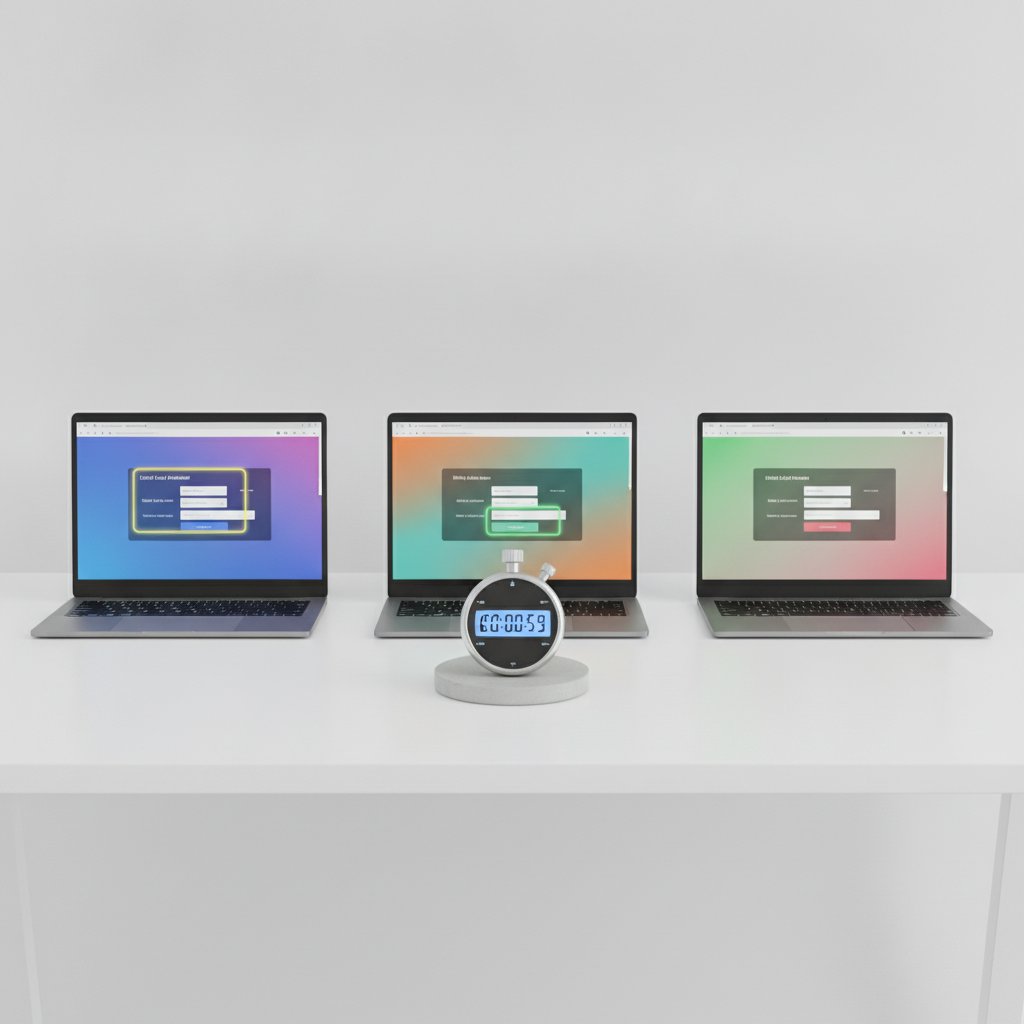
If you’ve ever wondered whether your browser’s built-in auto-fill is actually saving you time, you’re not alone. We ran a controlled browser auto-fill speed test across Chrome, Firefox, and Safari to measure exactly how fast each one populates checkout pages, sign-up forms, and address fields. The results might change which browser you reach for during your next online shopping spree.
Why Native Auto-Fill Speed Matters
Every second counts when you’re checking out online, especially on mobile where fumbling with a keyboard is tedious. Browser vendors have quietly optimized their auto-fill engines for years, but architecture differences mean the experience is far from uniform. Some browsers parse form fields instantly, while others introduce lag when detecting multi-step checkouts or unusual dropdown structures.
This test complements our broader comparison in Browser Auto-Fill vs. Dedicated Extensions: Which Is Actually Faster in 2026?, but here we isolate the native tools only, with no third-party extensions involved.
Testing Methodology
We used a stopwatch app synced to screen recordings, timing from the moment a user clicked into the first field to the moment all fields were populated and ready for submission. Each browser was tested on the same laptop, same network connection, and same set of ten real-world forms including:
- Single-page checkout forms with saved payment cards
- Multi-step sign-up forms requiring email verification steps
- Address fields with autocomplete dropdown suggestions
- Forms with unconventional field labels or hidden inputs
Each form was tested five times per browser, and we averaged the results to reduce variance from network hiccups or rendering delays.
The Results: Chrome vs. Firefox vs. Safari
Chrome: Fast but Inconsistent on Complex Forms
Chrome’s auto-fill was the quickest on simple, single-page forms, averaging just under 0.8 seconds to populate a standard checkout page with a saved card. However, its speed dropped noticeably on multi-step forms, where it sometimes needed a manual click to trigger the next round of suggestions, adding nearly a full second of delay.
Firefox: Steady and Predictable
Firefox didn’t win any single test outright, but it was remarkably consistent. Average fill times hovered around 1.1 seconds across almost every form type, including the trickier multi-step and dropdown-heavy forms. Its predictability makes it a solid choice for users who value reliability over raw speed.
Safari: Best on Apple Hardware, Slower Elsewhere
Safari showed the widest range of results. On macOS with iCloud Keychain fully synced, it was blazing fast, often beating Chrome by a fraction of a second on payment forms. But on more complex address fields with nested autocomplete suggestions, it lagged behind both competitors, averaging 1.4 seconds.
Ranking Table: Average Fill Time by Form Type
- Checkout with saved card: Chrome (0.78s) > Safari (0.85s) > Firefox (1.05s)
- Multi-step sign-up form: Firefox (1.10s) > Safari (1.20s) > Chrome (1.35s)
- Address autocomplete: Chrome (0.95s) > Firefox (1.15s) > Safari (1.40s)
- Unconventional field labels: Firefox (1.20s) > Chrome (1.30s) > Safari (1.45s)
How Browser Architecture Affects Speed
The differences aren’t random. Chrome’s rendering engine prioritizes rapid DOM parsing, which explains its edge on straightforward forms, but its auto-fill logic sometimes waits for a full page load event before triggering suggestions on multi-step processes. Firefox takes a more conservative approach, scanning the entire form structure upfront, which costs a bit of time initially but pays off with consistent performance later. Safari’s speed is closely tied to how well it’s integrated with Apple’s ecosystem; when Keychain data syncs seamlessly, it’s extremely fast, but any sync delay drags down its numbers.
Tips to Optimize Native Auto-Fill for Maximum Speed
Clean Up Saved Data Regularly
Outdated or duplicate saved entries can confuse a browser’s suggestion engine, adding milliseconds of lookup time. Periodically reviewing and removing old addresses or expired cards keeps the auto-fill engine lean and fast.
Keep Your Browser Updated
Auto-fill algorithms are updated frequently behind the scenes. Running an outdated browser version means missing out on performance improvements that vendors quietly roll out with each release.
Disable Conflicting Extensions
If you’re using both native auto-fill and a password manager extension, the two can sometimes compete for control over the same field, causing visible lag. Consider whether you need both running simultaneously, or check out our comparison of Top Password Manager Extensions That Outperform Browser Auto-Fill to decide which tool deserves priority.
Sync Settings Across Devices
For Safari users especially, ensuring iCloud Keychain sync is active and up to date can shave meaningful time off fill speeds, since much of Safari’s performance depends on quick access to synced credential data.
Final Verdict
There’s no single winner across every scenario. Chrome edges ahead for simple, single-page checkouts, Firefox offers the most predictable experience across varied form types, and Safari shines brightest within Apple’s tightly integrated ecosystem. If raw speed on everyday shopping forms is your priority, Chrome or Safari on native hardware are strong picks. If consistency across unpredictable form layouts matters more, Firefox is the safer bet.
