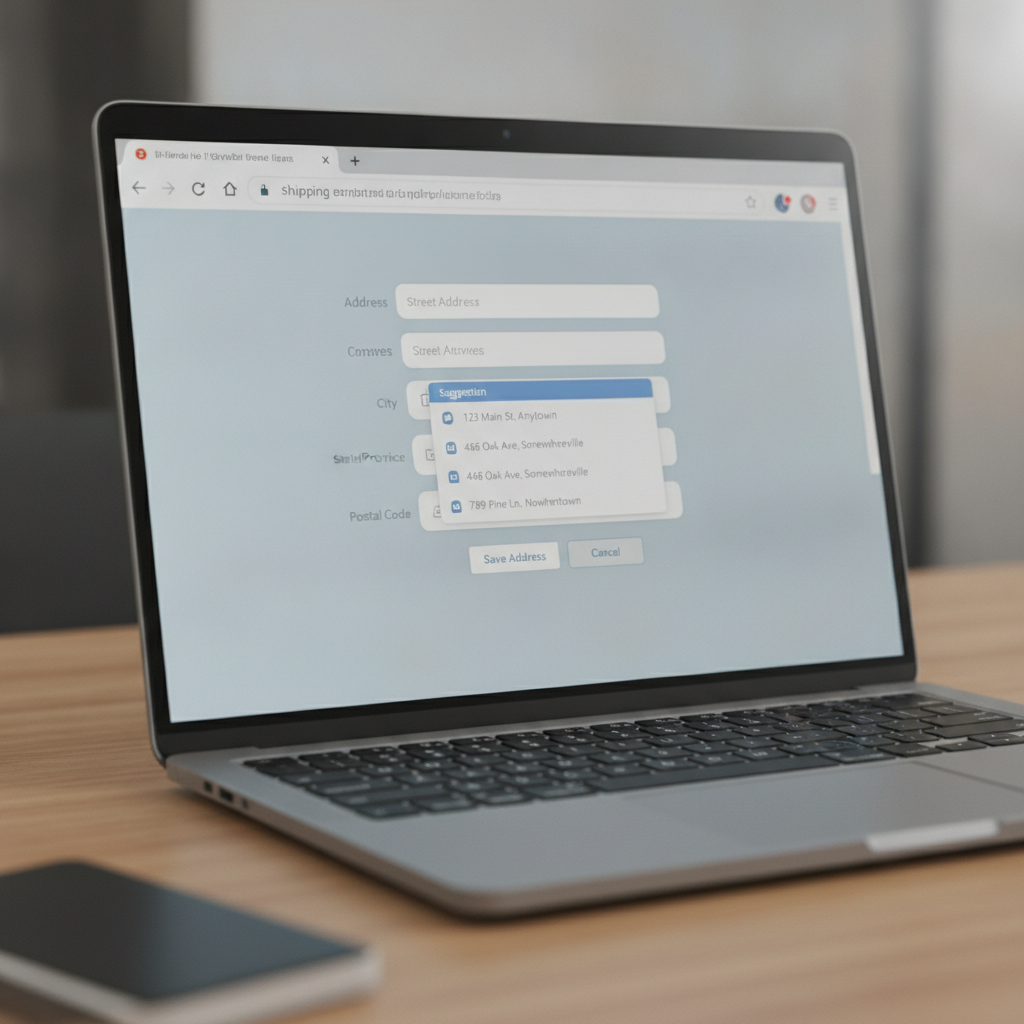
Typing your name, street address, city, and zip code every time you shop online or fill out a form gets old fast. Firefox’s built-in address autofill feature solves this problem by remembering your details and inserting them automatically wherever they’re needed. In this guide, we’ll walk through exactly how to enable, configure, and manage address autofill in Firefox so you can save time on every form you encounter.
What Is Address Autofill in Firefox?
Address autofill is a Firefox feature that stores your personal address information—like your name, street address, city, state, zip code, and country—and automatically fills it into web forms when you click into a relevant field. Instead of manually typing the same information over and over, Firefox recognizes address fields and offers to complete them for you with a single click.
This feature works alongside other autofill tools in Firefox, including saved payment methods and general form data. If you’re new to the concept, it’s worth reading our broader guide, How to Auto-Fill Forms in Firefox: The Complete Beginner’s Guide, which covers the full autofill ecosystem before diving into addresses specifically.
Why Enable Address Autofill?
Beyond the obvious convenience, address autofill reduces typing errors, speeds up checkout during online shopping, and makes filling out lengthy registration or shipping forms far less tedious. If you frequently shop online, sign up for services, or fill out shipping details, enabling this feature can save you several minutes per transaction over time.
How to Enable Autofill for Addresses in Firefox
Firefox makes it simple to turn on address autofill through its settings menu. Follow these steps:
Step 1: Open Firefox Settings
Click the menu icon (three horizontal lines) in the top-right corner of the browser window, then select Settings.
Step 2: Navigate to the Privacy & Security Tab
In the left-hand sidebar, click Privacy & Security. Scroll down until you find the section labeled Forms and Autofill.
Step 3: Enable the Address Autofill Option
Look for the checkbox labeled Save and fill addresses and make sure it’s checked. Some versions of Firefox also include a sub-option to include organization names or phone numbers in saved address data—enable these if you’d like more complete autofill entries.
Once this box is checked, Firefox will begin prompting you to save address information whenever you fill out a form containing address fields, and it will offer to autofill matching fields on future forms.
How to Add or Edit a Saved Address Manually
You don’t have to wait until you fill out a form to add an address—you can enter one directly through settings:
- Go to Settings > Privacy & Security > Forms and Autofill.
- Click the Saved Addresses button.
- Select Add Address and fill in the fields, including name, street address, city, state/province, zip/postal code, country, and phone number.
- Click Save when finished.
To edit an existing address, simply click on it in the Saved Addresses list, update the necessary fields, and save your changes. You can store multiple addresses—useful if you ship to both home and work, or manage addresses for family members.
Using Autofill When Filling Out Forms
Once addresses are saved, using autofill is effortless. When you click into an address-related field on a website, Firefox will display a dropdown showing your saved addresses. Simply select the one you want, and Firefox will populate all related fields—street, city, state, and zip—automatically. You can still manually edit any field afterward if a particular form requires slightly different information.
Managing and Deleting Saved Addresses
Keeping your saved addresses accurate is important, especially if you move or need to remove outdated entries. To manage saved addresses:
- Open Settings > Privacy & Security > Forms and Autofill > Saved Addresses.
- Select the address you want to remove.
- Click Remove to delete it permanently.
Regularly reviewing this list ensures Firefox doesn’t autofill outdated or incorrect information into important forms.
Is Address Autofill Safe?
Firefox stores address autofill data locally within your browser profile, and unlike payment card details, address information is not encrypted with a master password by default since it’s generally considered less sensitive. However, if you share a device with others, it’s wise to be mindful of what’s saved. For details on how Firefox handles more sensitive data like card numbers, check out our guide on How to Save and Auto-Fill Credit Card Information in Firefox Safely, which explains the additional security layers Firefox applies to payment information.
Troubleshooting Common Autofill Issues
If address autofill isn’t working as expected, try these fixes:
- Update Firefox: Ensure you’re running the latest version, as autofill improvements are frequently included in updates.
- Check the setting is enabled: Revisit the Forms and Autofill section to confirm the checkbox is still checked.
- Clear and re-add addresses: If a saved address seems corrupted or won’t populate correctly, delete it and add it fresh.
- Website compatibility: Some websites use non-standard form field names that Firefox may not recognize automatically, requiring manual entry in those specific cases.
Final Thoughts
Setting up address autofill in Firefox takes just a couple of minutes but pays off every time you shop online or fill out a form. By enabling this feature, adding your commonly used addresses, and keeping your saved entries up to date, you’ll breeze through checkout pages and registration forms with far less hassle. Combined with Firefox’s other autofill capabilities, it’s a small setup step that makes a noticeable difference in your daily browsing experience.
