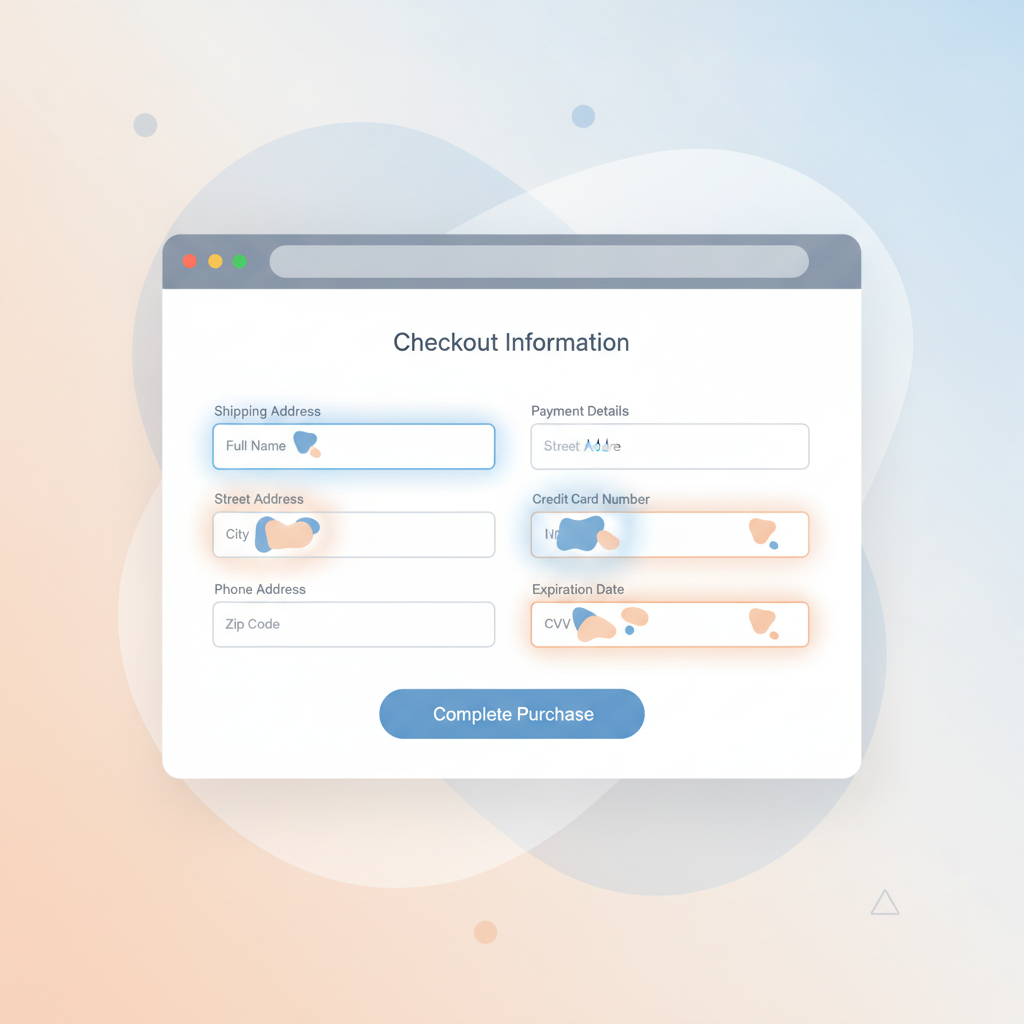
Filling out online forms is one of the most repetitive tasks we do on the web, whether you’re checking out at an online store, signing up for a newsletter, or logging into your favorite website. Firefox’s built-in autofill feature can save you time and frustration by remembering your information and entering it automatically. If you’ve ever wondered how this feature works or how to get the most out of it, this complete beginner’s guide will walk you through everything you need to know.
What Is Autofill in Firefox?
Autofill is a built-in Firefox feature that securely stores information you enter into web forms, such as your name, address, phone number, email, payment details, and login credentials. Once saved, Firefox can automatically populate these fields the next time you visit a similar form, eliminating the need to manually retype the same information over and over.
This feature is especially useful for online shopping, account registrations, and any site that requires repeated entry of personal details. Firefox stores this data locally on your device (and optionally syncs it across devices if you’re signed into a Firefox Account), giving you convenience without sacrificing control over your information.
Types of Data Firefox Can Auto-Fill
Firefox’s autofill capabilities cover several categories of information, each with its own settings and level of security:
- Addresses: Firefox can remember your name, street address, city, postal code, and phone number for quick form completion.
- Payment methods: Credit card numbers and expiration dates can be securely saved and auto-filled at checkout.
- Passwords and logins: Firefox’s password manager stores usernames and passwords, offering to fill them in automatically when you revisit a site.
Each of these data types has its own dedicated settings menu, and we cover them in more detail in our companion guides, including How to Enable and Set Up Autofill for Addresses in Firefox and How to Save and Auto-Fill Credit Card Information in Firefox Safely.
How to Enable Autofill in Firefox
Getting started with autofill only takes a few clicks. Here’s how to turn it on and configure your basic preferences:
Step 1: Open Firefox Settings
Click the menu icon (the three horizontal lines) in the top-right corner of your browser window, then select Settings from the dropdown menu.
Step 2: Navigate to Privacy & Security
In the left-hand sidebar, click on Privacy & Security. Scroll down until you find the sections labeled Logins and Passwords and Forms and Autofill.
Step 3: Toggle the Autofill Options
Under Forms and Autofill, you’ll see checkboxes for saving and filling addresses and saving and filling payment methods. Simply check the boxes for the types of data you want Firefox to remember and auto-fill.
Step 4: Save Your First Entry
The next time you fill out a form online, Firefox will typically prompt you with a small pop-up asking if you’d like to save that information. Click Save to store it for future use.
Managing and Editing Saved Autofill Data
Once you’ve started saving information, you may want to review, edit, or delete it. Firefox makes this simple through the same Privacy & Security settings page. Look for buttons labeled Saved Addresses or Saved Payment Methods to open a management window where you can view all stored entries, make corrections, or remove outdated information entirely.
Regularly reviewing your saved data is a good habit, especially if you’ve moved, changed phone numbers, or updated a credit card. Keeping this information current ensures that autofill continues to work accurately and saves you from accidentally sending outdated details to a website.
Troubleshooting Common Autofill Problems
Sometimes autofill doesn’t work as expected. This can happen for several reasons: the website’s form fields may not be coded in a way Firefox recognizes, your saved data might be incomplete, or a setting may have been accidentally disabled. If you’re running into issues where autofill suggestions aren’t appearing or fields aren’t populating correctly, our detailed troubleshooting resource, Firefox Autofill Not Working? How to Fix Common Form-Filling Issues, walks through the most common fixes step by step.
Best Practices for Security and Privacy
While autofill is convenient, it’s important to use it thoughtfully, especially when it comes to sensitive data like payment information. Here are a few best practices to keep in mind:
- Use a strong device password: Since autofill data is stored on your device, a secure login helps prevent unauthorized access.
- Enable a Firefox Account with sync: This allows encrypted syncing of your saved data across devices while keeping it protected.
- Avoid autofill on shared or public computers: Disable or avoid saving sensitive information when using a browser that others might access.
- Periodically review saved entries: Remove old or unused addresses and payment methods to minimize risk.
By following these simple precautions, you can enjoy the time-saving benefits of autofill without compromising your personal security.
Final Thoughts
Firefox’s autofill feature is a powerful tool that can dramatically speed up your browsing experience once it’s properly set up. From remembering your home address to securely storing payment details, autofill takes the tedium out of form-filling. If you’d like to dive deeper into specific aspects of this feature, be sure to check out our related guides on setting up address autofill, safely saving credit card information, and troubleshooting common issues. With a little setup and regular maintenance, you’ll be filling out forms faster and more efficiently in no time.
